Showing posts with label PC. Show all posts
Watch Live Streaming India Vs Australia Test Match Mobile & PC Links
Watch Live India Vs Australia Test cricket Match online on PC & Mobile.Mobile users Need to just paste the links in the browser which will take you to the steaming media player .Make sure you have done proper operator settings before you stream.All hence forth matches played will be available on the the same URL.
Connect & Play Counter Strike online on internet
Connect with friends have fun playing Counter-Strike online
with your friends and many gaming bots around the world.
The Game is pretty old but must say very interesting and addictive
to play .If you are bored playing game alone on your computer and want
to challenge your friend ,test your skills and have some fun then
Here This is a simple post to show you how you can play online
connecting to a server.
If you have counter strike game installed on your computer
well and good otherwise you can direct download and
install the Game
DOWNLOAD LINK:
http://www.counterstrike16download.com/
After you install the Game.
Here is the procedure to connect to server
Go To:
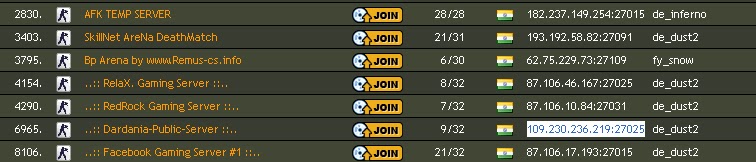
http://www.gametracker.com/search/cs/IN/
This is a Gaming website which provide you with
IP and port of the server which you can connect
and play with other users connected to it.
Copy any IP according to your preference
you may choose any of IP and port available
pick IP of the server which is not full of players
Keep internet connection Running
Now Launch counter strike 1.6 Game
you have 2 options to Go on
1. Hit ~ button your keyboard
a console will appear
write CONNECT and paste the ip and port you copied
eg. connect 109.230.236.219:27025
Now the game may download any additonal resources
if required and connect to server successfully .
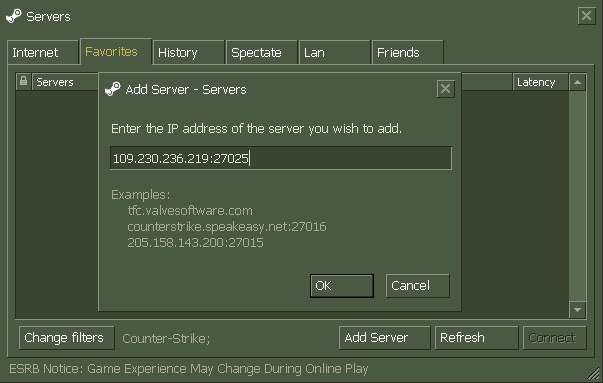
2.Other way to connect
This will allow to retain the server address which you are connecting
After you launch the game click on Find servers
favorites -> add server-> ok
To connect just double clicking the server address
Thanks for Reading!
POST WRITTEN BY SOHUM PRABHUDESSAI CS GAMING PRO
Visit his blog
Find More Tricks Click here
How to setup your mobile modem in P.C.
Most of the latest mobile creat
there modem itself , there is no
need to
do anything just connect you
mobile to cable and it will
automatically
install it but remeber Pc. Suit
should be installed.
In your computer Goto Control
panel >> click on Phone and
modem option (If you opened
it First time then it will ask for
country code enter it 91 or
anything and press next) >>
Come to MODEM tab >> Cick on
ADD tab >>
In new window Select "Dont
select my modem i will choose it
from list" and press next >>
Now choose your mobile
company in left window and
model in right window ( You can
maually point for your drivers
from HAVE disk in case you have
them ) >> Now choose your Port
and press next , Most probably
you will get a Xp certificate
notice just accept it and you are
ready
there modem itself , there is no
need to
do anything just connect you
mobile to cable and it will
automatically
install it but remeber Pc. Suit
should be installed.
In your computer Goto Control
panel >> click on Phone and
modem option (If you opened
it First time then it will ask for
country code enter it 91 or
anything and press next) >>
Come to MODEM tab >> Cick on
ADD tab >>
In new window Select "Dont
select my modem i will choose it
from list" and press next >>
Now choose your mobile
company in left window and
model in right window ( You can
maually point for your drivers
from HAVE disk in case you have
them ) >> Now choose your Port
and press next , Most probably
you will get a Xp certificate
notice just accept it and you are
ready
DELETE THE UNDELETABLE FILES IN YOUR PC
Many times when trying to
remove an unwanted program,
especially a piece of adware or
spyware, you may run across a
file that is undeletable by any
normal method. When you try to
remove it you'll receive the error
message shown below telling
you "access denied" and
explaining the file may be in use.
So if the file is in use, how do you
delete it?
Windows 95/98/ME
If you are using Windows 95, 98,
or Windows ME, the easiest way
to remove an undeleteable file is
to boot to a DOS prompt and
manually delete the file. Before
you do this, you'll want to make a
note of the location of the file
including the entire path to it.
Follow the steps below to delete
these types of files.
Type the name of the undeletable
file in the Named or Search For
box
Make sure the Look In box
shows the correct drive letter
Click on Find Now or Search Now
and let the computer find the file
Once the file is located, right-click
on it and choose properties,
make a note of the file location.
Usually this is something similar
to
c:\windows
\system32\undeleteablefilesname.exe
Close the search box
Locate a boot disk for your
version of Windows, if you do
not have a boot disk, follow the
steps on the link below to create
an emergency boot disk.
Shut down and restart your
computer with the boot disk in
your floppy drive.
The computer will boot to a DOS
prompt that will look similar to
c:\
Type the following command and
press Enter to delete the filer,
substituting the phrase with the
actual path and file name you
discovered in Step 5 above.
del
Example:
del c:\windows
\undeleteablefile.exe
Remove the boot disk in the
floppy drive and restart your
computer
The file should now be deleted.
Windows XP
In Windows XP, there are a
couple ways to remove an
undeleteable file, a manual way,
and a couple automated ways
using some freeware programs.
Manual Method
If you already know the path to
the file, please skip to Step 7
Click on Start, Search, All Files and
Folders
Type the name of the undeletable
file in the box shown
Make sure the Look In box
shows the correct drive letter
Click Search and let the computer
find the file
Once the file is located, right-click
on it and choose properties,
make a note of the file location.
Usually this is something similar
to
c:\windows
\system32\undeleteablefilesname.exe
Close the search box
Click on Start, Run, and type CMD
and Press Enter to open a
Command Prompt window
Leave the Command Prompt
window open, but proceed to
close all other open programs
Click on Start, Run and type
TASKMGR.EXE and press Enter to
start Task Manager
Click on the Processes tab, click
on the process named
Explorer.exe and click on End
Process.
Minimize Task Manager but leave
it open
Go back to the Command Prompt
window and change to the
directory where the file is
located. To do this, use the CD
command. You can follow the
example below.
Example: to change to the
Windows\System32 directory
you would enter the following
command and Press Enter
cd \windows\system32
Now use the DEL command to
delete the offending file. Type DEL
where is the file you wish to
delete.
Example: del undeletable.exe
Use ALT-TAB to go back to Task
Manager
In Task Manager, click File, New
Task and enter EXPLORER.EXE to
restart the Windows shell.
Close Task Manager
Programs to automatically delete
a file
Remove on Reboot Shell
Extension
This is a nice extension that
loads into the right click menu. All
you have to do is right-click on a
file and choose "Remove on Next
Reboot" and the file will be
deleted the next time the
computer restarts. Although it
probably should only be used by
more advanced computer users
since it may be TOO easy to
delete files using this program.
Pocket Killbox
A simple .exe file that you can use
to delete undeleteable files,
although the program will also
delete temporary files, edit the
HOSTS file, and more. A definite
must have program when you
are fighting an annoying
spyware or adware program that
won't remove.
Unlocker
Unlocker is another program that
runs from the right click menu.
Its simple and very effective.
Using one of the three tools
shown above, you should be able
to remove those annoying
undeleteable files once and for
all.
remove an unwanted program,
especially a piece of adware or
spyware, you may run across a
file that is undeletable by any
normal method. When you try to
remove it you'll receive the error
message shown below telling
you "access denied" and
explaining the file may be in use.
So if the file is in use, how do you
delete it?
Windows 95/98/ME
If you are using Windows 95, 98,
or Windows ME, the easiest way
to remove an undeleteable file is
to boot to a DOS prompt and
manually delete the file. Before
you do this, you'll want to make a
note of the location of the file
including the entire path to it.
Follow the steps below to delete
these types of files.
Type the name of the undeletable
file in the Named or Search For
box
Make sure the Look In box
shows the correct drive letter
Click on Find Now or Search Now
and let the computer find the file
Once the file is located, right-click
on it and choose properties,
make a note of the file location.
Usually this is something similar
to
c:\windows
\system32\undeleteablefilesname.exe
Close the search box
Locate a boot disk for your
version of Windows, if you do
not have a boot disk, follow the
steps on the link below to create
an emergency boot disk.
Shut down and restart your
computer with the boot disk in
your floppy drive.
The computer will boot to a DOS
prompt that will look similar to
c:\
Type the following command and
press Enter to delete the filer,
substituting the phrase with the
actual path and file name you
discovered in Step 5 above.
del
Example:
del c:\windows
\undeleteablefile.exe
Remove the boot disk in the
floppy drive and restart your
computer
The file should now be deleted.
Windows XP
In Windows XP, there are a
couple ways to remove an
undeleteable file, a manual way,
and a couple automated ways
using some freeware programs.
Manual Method
If you already know the path to
the file, please skip to Step 7
Click on Start, Search, All Files and
Folders
Type the name of the undeletable
file in the box shown
Make sure the Look In box
shows the correct drive letter
Click Search and let the computer
find the file
Once the file is located, right-click
on it and choose properties,
make a note of the file location.
Usually this is something similar
to
c:\windows
\system32\undeleteablefilesname.exe
Close the search box
Click on Start, Run, and type CMD
and Press Enter to open a
Command Prompt window
Leave the Command Prompt
window open, but proceed to
close all other open programs
Click on Start, Run and type
TASKMGR.EXE and press Enter to
start Task Manager
Click on the Processes tab, click
on the process named
Explorer.exe and click on End
Process.
Minimize Task Manager but leave
it open
Go back to the Command Prompt
window and change to the
directory where the file is
located. To do this, use the CD
command. You can follow the
example below.
Example: to change to the
Windows\System32 directory
you would enter the following
command and Press Enter
cd \windows\system32
Now use the DEL command to
delete the offending file. Type DEL
where is the file you wish to
delete.
Example: del undeletable.exe
Use ALT-TAB to go back to Task
Manager
In Task Manager, click File, New
Task and enter EXPLORER.EXE to
restart the Windows shell.
Close Task Manager
Programs to automatically delete
a file
Remove on Reboot Shell
Extension
This is a nice extension that
loads into the right click menu. All
you have to do is right-click on a
file and choose "Remove on Next
Reboot" and the file will be
deleted the next time the
computer restarts. Although it
probably should only be used by
more advanced computer users
since it may be TOO easy to
delete files using this program.
Pocket Killbox
A simple .exe file that you can use
to delete undeleteable files,
although the program will also
delete temporary files, edit the
HOSTS file, and more. A definite
must have program when you
are fighting an annoying
spyware or adware program that
won't remove.
Unlocker
Unlocker is another program that
runs from the right click menu.
Its simple and very effective.
Using one of the three tools
shown above, you should be able
to remove those annoying
undeleteable files once and for
all.
Subscribe to:
Posts (Atom)